
How to Add a Squarespace Mega Menu in 7.1 Completely Free
If your website through Squarespace 7.1 and are looking to make navigation on your website easier, then a squarespace mega menu is definitely something you should look into. Mega menus make it possible to have multiple columns of links, pictures, buttons, or any type of content in one massive drop-down menu.
Sadly, there is no native option for a mega menu in the Squarespace editor, at least in version 7.1. However, there is a tip and trick that will allow a user to have a mega menu for free using custom code and the footer system. In this tutorial post, we will take you through exactly how to do it for free.
What Is a Squarespace Mega Menu?
A squarespace mega menu is an enhanced navigation dropdown that goes beyond simple links. Instead of a single column of items, a mega menu can include:
- Multiple columns of links
- Headings for different categories
- Images or icons
- Custom layouts with spacing and design
- Buttons and CTAs
This kind of menu is especially useful for large sites — like e-commerce stores, service directories, or content-rich blogs — where you want visitors to quickly see all their options without overwhelming them with nested pages.
Why Squarespace Doesn’t Support Mega Menus Natively
Squarespace is known for simplicity and ease of use, but that also means some advanced features — like mega menus — aren’t available straight out of the box. The platform’s native menu system only supports basic dropdowns or folders.
To add a real mega menu, you’ll need to extend Squarespace’s functionality using custom JavaScript and CSS. Luckily, the free method we’ll show you leverages existing Squarespace components and doesn’t require paid plugins.
Requirements Before We Begin
Before you jump into the instructions, make sure you have:
✔ A Squarespace 7.1 website (this method won’t work on 7.0 templates)
✔ Access to Design > Custom CSS
✔ Access to Settings > Advanced > Code Injection
✔ Familiarity with where to paste code blocks in Squarespace
That’s it — you don’t need advanced development skills, but a basic comfort with copy-paste and navigating the Squarespace backend will help.
Step-by-Step Guide to Create a Squarespace Mega Menu for Free
Step 1: Create Your Mega Menu Content
- Open your Squarespace dashboard.
- Go to Pages.
- At the bottom, find the Footer and add a new section.
- Inside this new footer section, build the layout you want for your mega menu using Squarespace’s blocks — headings, text, buttons, etc.
Why footer? Because this section appears on every page, making it easy to relocate later.

Step 2: Add a Menu Folder in Navigation
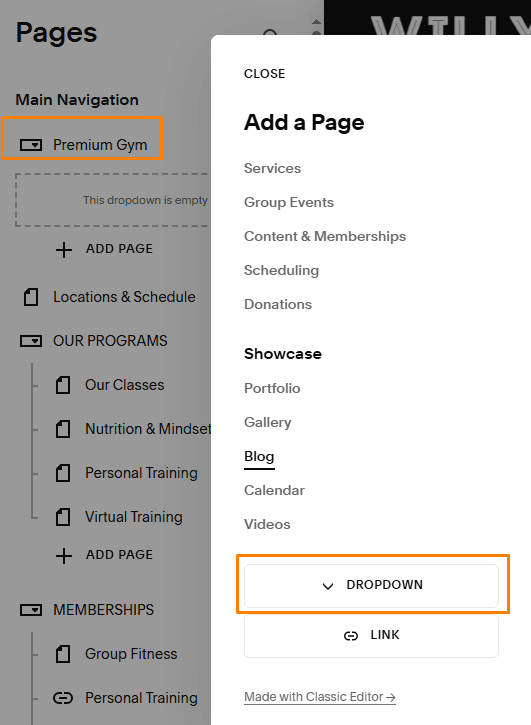
Next, we’ll add a trigger for the mega menu in your main navigation we need add Dropdown navigation:
- Go to Pages → Main Navigation.
- Click + Add → select Dropdown.
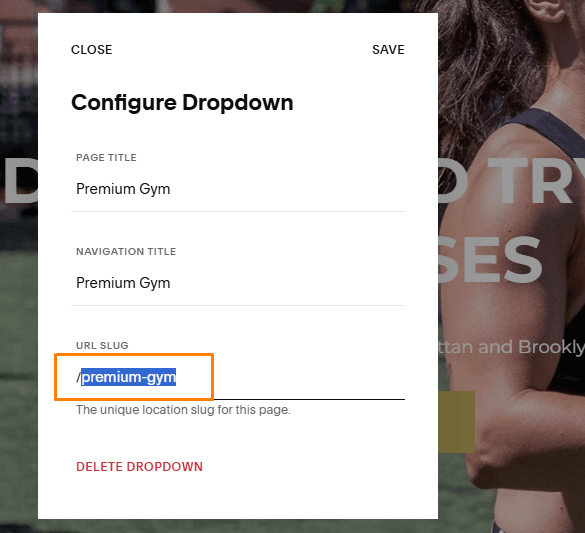
- Name the Dropdown nav and give it a meaningful URL slug (e.g.,
/premium-gymor/shop). - Do not add pages under this Dropdown yet — it just acts as the placeholder for your mega menu.
This dropdown link will be what users hover over to see the mega menu content.
Step 3: Move the Footer Section into the Navigation Dropdown
Now we’re going to use a small JavaScript snippet that moves the footer section into the navigation dropdown — effectively turning the footer content into a mega menu. This step is where the magic happens. You will able to see result
Here’s the code: Copy code and pest into Website > Custome Code > Code Injection > Header
<script src="https://code.jquery.com/jquery-3.5.1.min.js"></script>
<script>
$(function(){
   $('.header-display-desktop [data-href="/premium-gym"] + .header-nav-folder-content')
      .append($('#footer-sections section:nth-of-type(2)'));
});
</script>
Replace "/premium-gym" with the actual URL slug of your navigation Dropdown (for example: /premium-gym
This snippet finds your footer section and appends it inside the dropdown panel of that folder. section:nth-of-type(2) You can adjust nth-of-type 2 or 3 or 4 if you have more section
Step 4: Style Your Mega Menu with CSS
Your mega menu should now be part of the navigation — but it won’t look good until you style it. You have to add CSS to fit with header navigation
Go to Website → Custome Code → Custom CSS and paste:

.header-display-desktop [data-href="/premium-gym"] + .header-nav-folder-content{
   width: 100vw;
   left: 0 !important;
   right: 0 !important;
   position: fixed;
   padding: 0px;
   border-bottom: 1px solid #ccc;
   box-shadow: 0px 5px 5px #aaa;
}

.header-display-desktop [data-href="/premium-gym"] + .header-nav-folder-content a {
   display: inline !important;
}

.header-display-desktop [data-href="/premium-gym"] + .header-nav-folder-content .sqs-block-button-element {
   padding: 1em 1.6em !important;
}
✔ This sets your mega menu to full width and fixes it under the navigation.
✔ It also improves link and button visibility inside the dropdown.
✔ Adjust styles as needed to match your brand.
Step 5: Mobile Optimization
On mobile devices, there’s not enough space for a full mega menu. Fortunately, we can hide the mega menu items and keep the standard dropdown behavior.
Add this additional CSS:
.header-display-desktop [data-href="/Folder-URL-here"] + .header-nav-folder-content .header-nav-folder-item {
   display: none;
}
This hides desktop-style mega menu items on mobile, letting users see the normal dropdown instead. You can always customize mobile behavior further if needed.
Testing & Troubleshooting Tips
Here are some common issues you might encounter:
Mega menu doesn’t show:
Check that the URL slug in your JavaScript matches your folder link exactly (including lower/upper case).
Layout breaks on different screens:
Use responsive CSS media queries to adjust for tablets and phones.
Links inside mega menu not working:
Ensure that plain <a> links are enabled and styled correctly in your menu content.
These tweaks usually solve most common problems.
Why This Works
This technique works because it repurposes Squarespace’s existing footer system into a dynamic navigation component. It’s a clever hack that:
- Keeps your site structure clean
- Avoids paid plugins for basic mega menus
- Is fully customizable with CSS and JavaScript
- Works across all Squarespace 7.1 templates
While it’s not a “native” feature from Squarespace, it gives you the flexibility to build a professional mega menu without extra cost.
Want Even More Advanced Mega Menus?
If you want multiple mega menus, richer animations, or mobile-first mega layout functionality, advanced paid plugins and code libraries exist — but they often require payment and subscription. For most sites, the free method above is a powerful start.
Conclusion
Adding a squarespace mega menu to your Squarespace 7.1 website doesn’t have to be expensive or complicated. With a combination of footer section reuse, a little bit of JavaScript, and custom CSS, you can create a beautiful and functional mega dropdown for free.
Implement it once and watch your site’s navigation and user experience improve immediately — especially for larger sites with a lot of pages or categories.
Now that you know how to add a mega menu completely free, go build one and elevate your Squarespace site! 🚀
No, Squarespace 7.1 does not offer a built-in mega menu feature. However, you can create a fully functional squarespace mega menu for free using custom CSS and JavaScript, as explained in this guide.
Yes. This method is 100% free and does not require any paid plugins, third-party tools, or subscriptions. It uses Squarespace’s footer sections combined with lightweight custom code.
Yes, this approach works on all Squarespace 7.1 templates because they share the same core structure. Minor CSS adjustments may be needed depending on your site’s header layout.
By default, this setup is designed for desktop navigation. On mobile, the mega menu content is hidden to maintain usability. You can customize mobile behavior further with additional CSS if needed.
Yes, you can create multiple squarespace mega menu dropdowns by adding additional footer sections and updating the JavaScript selectors for each navigation folder. This is ideal for large or content-heavy websites.