How to Optimize a Squarespace Website for Mobile
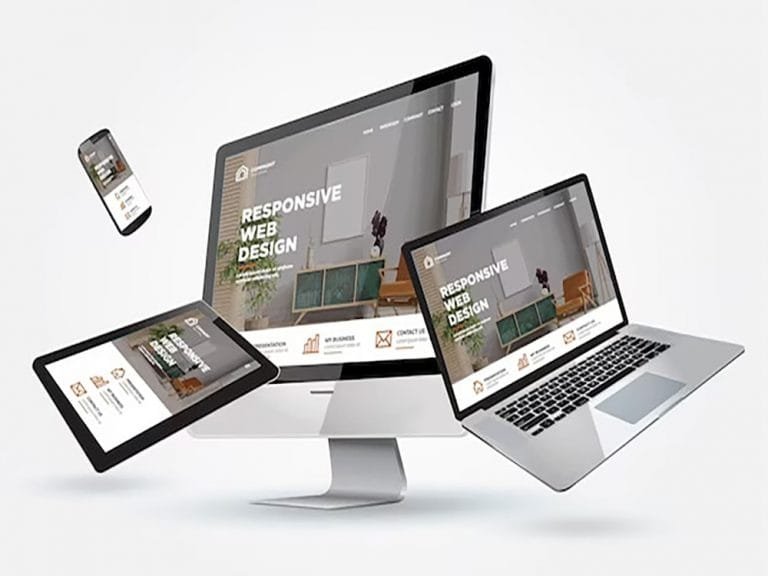
When around 90% of your website visitors come from mobile devices, designing for desktop first doesn’t make much sense. Squarespace mobile optimization should be a priority from the beginning, especially for small business owners who want to turn website visitors into potential customers. People browse websites on their phones while searching for services, comparing businesses, and looking for someone they can trust. If your website is difficult to use on a smaller screen, you could lose potential customers before they even get a chance to explore what you offer.
I’ve worked with website layouts and design elements, and one thing is clear: a website that looks great on a desktop doesn’t always deliver the same experience on mobile. Sometimes the text looks too large, images don’t fit properly, buttons are difficult to tap, or the navigation feels crowded.
The good news is that you don’t need to rebuild your entire Squarespace website to improve the mobile experience. A few thoughtful adjustments can make a big difference.
In this guide, I’ll share practical ways to improve your Squarespace mobile design and make your website easier to use on smartphones.
Why Should You Design Your Squarespace Website for Mobile First?
Think about how people find a local business today. They search on Google, visit a website from social media, or click a link someone shared with them. In many cases, they do all of this from their phones.
When someone visits your website, they usually want to find something quickly:
- What services does the business offer?
- Can I see examples of previous work?
- How much do the services cost?
- How can I contact the business?
If visitors have to zoom in, scroll through confusing sections, or struggle to find your contact information, they may simply leave.
That’s why I recommend thinking about the mobile experience before worrying about how everything looks on a large screen.
A mobile-first approach helps you focus on the most important content, create a cleaner layout, and make it easier for visitors to take action.
1. Start by Checking Your Squarespace Mobile Layout
Before making changes, open your website on your phone and browse it as if you were a potential customer.
Don’t just look at the homepage. Visit your service pages, about page, portfolio, and contact page too.
Pay attention to things like:
- Are the headings easy to read?
- Do images fit properly?
- Is there enough space between sections?
- Can you find the main navigation easily?
- Are buttons easy to tap?
- Does the contact form work properly?
Squarespace automatically adjusts many website elements for mobile screens, but that doesn’t mean every section will look perfect.
For example, a two-column section might look balanced on desktop but feel too long or crowded when the content stacks vertically on mobile.
Take time to review each section and make adjustments where needed.
2. Keep Your Mobile Navigation Simple
Your website navigation should help visitors find information without making them think too much.
On desktop, you might have enough room for several navigation links. On mobile, that same menu needs to fit into a much smaller space.
I recommend keeping the main navigation simple. For most small business websites, pages like Home, About, Services, Portfolio, and Contact are a good starting point.
A few things to keep in mind:
- Avoid adding unnecessary pages to the main menu.
- Use short and clear navigation labels.
- Make sure dropdown menus work properly.
- Keep your contact page easy to access.
- Check that the mobile menu opens and closes correctly.
If your business depends on customer inquiries, make it easy for visitors to find your contact information.
A simple menu can make the entire website feel more organized.
3. Make Your Squarespace Mobile Design Easy to Read
One common problem I notice with mobile website layouts is oversized headings and paragraphs that are difficult to read.
A heading might look great on a large monitor, but on a smartphone, it can take up too much space or break into several unnecessary lines.
You don’t need complicated typography to create a professional website. Focus on readability and consistency.
Here are a few suggestions:
- Keep paragraph text comfortable to read.
- Avoid unnecessarily large headings.
- Use consistent font styles throughout the website.
- Maintain good contrast between text and backgrounds.
- Leave enough space between headings and paragraphs.
For paragraph text, around 16–18 pixels is a reasonable starting point, although the best size depends on the font you’re using.
Also, try to keep headings clear and direct. Shorter headings usually work better on smaller screens.
4. Optimize Images Without Losing Quality
Images play a big role in website design, but they can also create problems on mobile devices.A large image might look beautiful on desktop but take longer to load on a phone. Sometimes the important part of the image gets cropped when the screen size changes.
To avoid these problems, review your website images carefully.
Resize large images: Don’t upload unnecessarily large files when a smaller version will work.
Use suitable image formats: WebP can help reduce file sizes while maintaining good image quality. Squarespace also provides image optimization features.
Check image positioning: Make sure the main subject remains visible when the image is displayed on mobile.
Avoid unnecessary images: Every image should have a purpose. Too many decorative images can make your pages longer without adding much value.
One more thing: don’t forget image alt text. Write a short, meaningful description for images that communicate important information.
5. Make Buttons Easy to Find and Tap
Imagine someone visiting your website because they’re interested in your services. They read your introduction and want to get in touch, but the contact button is difficult to find or too small to tap.
That’s a frustrating experience.
Your buttons should be easy to recognize and placed where visitors naturally expect them.
For example:
- Add a clear call-to-action near the top of your homepage.
- Place service inquiry buttons on relevant service pages.
- Leave enough space between buttons.
- Use clear labels such as “Get a Quote” or “Contact Me.”
- Make sure every button leads to the correct destination.
Avoid using too many different calls to action in one section. Give visitors a clear next step instead of overwhelming them with choices.
6. Improve Your Squarespace Website Loading Speed
Nobody likes waiting for a website to load, especially when browsing from a phone.
Even if your design looks great, visitors may leave if pages take too long to display.
While Squarespace manages the hosting infrastructure, there are still things you can do to improve performance.Start with your images. Large image files are often an easy place to find opportunities for improvement.
You should also:
- Remove unnecessary animations.
- Limit third-party scripts and widgets.
- Avoid adding too many embedded videos.
- Remove plugins or integrations you no longer use.
- Keep pages focused and avoid unnecessary content.
You can test your website using Google PageSpeed Insights. It provides useful information about loading performance and areas that may need attention.
Pay attention to Core Web Vitals, especially Largest Contentful Paint (LCP), Interaction to Next Paint (INP), and Cumulative Layout Shift (CLS).
Don’t just focus on getting a perfect score. Look at the actual problems affecting your visitors and work on improving them.
7. Check Your Contact Forms on Mobile
For many small businesses, the contact form is one of the most important parts of the website.
A visitor might be ready to ask about your services, but a complicated form can make them change their mind.
Open your Squarespace contact form on a smartphone and test it yourself.
Check that:
- All fields are easy to select.
- Text is easy to read.
- Labels are clear.
- The submit button is easy to find.
- The form works after submission.
- Confirmation messages appear correctly.
Keep your form simple. You probably don’t need to ask for ten different details when someone is just trying to make an initial inquiry.
Ask only for the information you actually need to start a conversation.
8. Test Your Website on Different Mobile Screen Sizes
A website that looks good on your phone might not look exactly the same on someone else’s device.People use different smartphones, screen sizes, browsers, and operating systems.That’s why testing is an important part of the process.
Check your website on different screen sizes and look for:
- Text overlapping images.
- Unwanted horizontal scrolling.
- Buttons that are too close together.
- Images with poor cropping.
- Inconsistent section spacing.
- Content appearing in an awkward order.
Squarespace’s mobile preview is useful while editing, but I always recommend checking the published website on a real phone too. It helps you catch problems that might not be obvious inside the editor.
9. Use Custom CSS Only When Needed
Sometimes Squarespace’s built-in design settings are enough to create a good mobile experience. Other times, you may need a little extra customization. This is where custom CSS can help.
For example, you might need to adjust heading sizes, section spacing, button styles, or specific layout elements on mobile.
However, adding CSS without understanding how it affects the rest of the website can create more problems. A change that fixes one mobile section might affect another section or even the desktop layout.
My advice is to start with Squarespace’s built-in settings. Use custom CSS when you need more control over a specific design element.
Always test your changes on both desktop and mobile before publishing them.
Squarespace Mobile Optimization Checklist
Before considering your website ready, go through this quick checklist:
- Mobile navigation works properly.
- Headings and paragraphs are easy to read.
- Images display correctly on smaller screens.
- Buttons are easy to tap.
- Important information is easy to find.
- Contact forms work properly.
- Pages don’t have unwanted horizontal scrolling.
- Unnecessary animations and scripts are removed.
- All important links work correctly.
- The website has been tested on a real smartphone.
You don’t need to make every section look exactly the same on every device. The goal is to give visitors a consistent and comfortable experience.
Need Help Improving Your Squarespace Website?
Building a Squarespace website is one thing. Making sure it works well across different devices takes a little more attention.
If your website looks great on desktop but feels difficult to use on mobile, it might be time to review the layout, navigation, typography, and overall design.
I help small businesses improve their Squarespace websites through responsive design, custom CSS, layout improvements, and website redesign services.
Whether you need a few mobile design adjustments or a complete website redesign, I can help make your website look professional and easier for visitors to use.
Need help with your Squarespace website?
Visit my Squarespace Web Designer service page to learn more about my services.
Frequently Asked Questions
Yes. Squarespace templates and Fluid Engine layouts are designed to adjust to different screen sizes. However, automatic adjustments don’t always create the best layout. You should still review your website and make changes where necessary.
You can use the mobile preview in the Squarespace editor to review your website on smaller screens. With Fluid Engine, you can also make mobile-specific layout adjustments. Available options depend on your editing interface and website version.
Yes. Google primarily uses the mobile version of a website for indexing. A website that is easy to navigate, loads efficiently, and provides a good mobile experience supports your overall SEO efforts.
Squarespace automatically adjusts layouts for smaller screens. Columns may stack, images may crop differently, and spacing may change. These are normal responsive design behaviors, but some sections may need additional adjustments.
Yes. Custom CSS can help you adjust typography, spacing, buttons, and other design elements. However, always test your code across different screen sizes to make sure it doesn’t create unexpected layout problems.
Check your website whenever you make major design changes, add new sections, or update important pages. It’s also a good idea to review the main pages regularly to make sure everything still works as expected.
Final Thoughts
Your website should work for the people visiting it, not just look good in the desktop editor.
If most of your visitors are browsing from their phones, give the mobile experience the attention it deserves. Start with the navigation, make your content easy to read, optimize your images, and make it simple for visitors to contact you.
A few thoughtful improvements can make your Squarespace website easier to use and give potential customers a better first impression.