Squarespace SEO: Settings, Checklist & Tips (2026)
Every few weeks someone tells me, “I built my site on Squarespace, but Google can’t seem to find it.” Then they ask the question I hear most: is Squarespace just bad for SEO?
No, it isn’t. It’s a solid platform, and most ranking problems have nothing to do with it. The usual cause is that nobody told the site what it’s about, so Google has to guess.
This guide covers Squarespace SEO in plain language. I’ll show you where the SEO settings are, what to put in them, and which “tips” you can ignore. You don’t need to be technical. You need about an hour and a clear idea of what you want to rank for. At the end, you’ll find a simple Squarespace SEO checklist you can follow step by step.
Is Squarespace Good for SEO?
Yes, for most small businesses, freelancers, and creators. Out of the box, Squarespace gives you:
- Automatic SSL (the padlock, which Google expects)
- Mobile-responsive templates
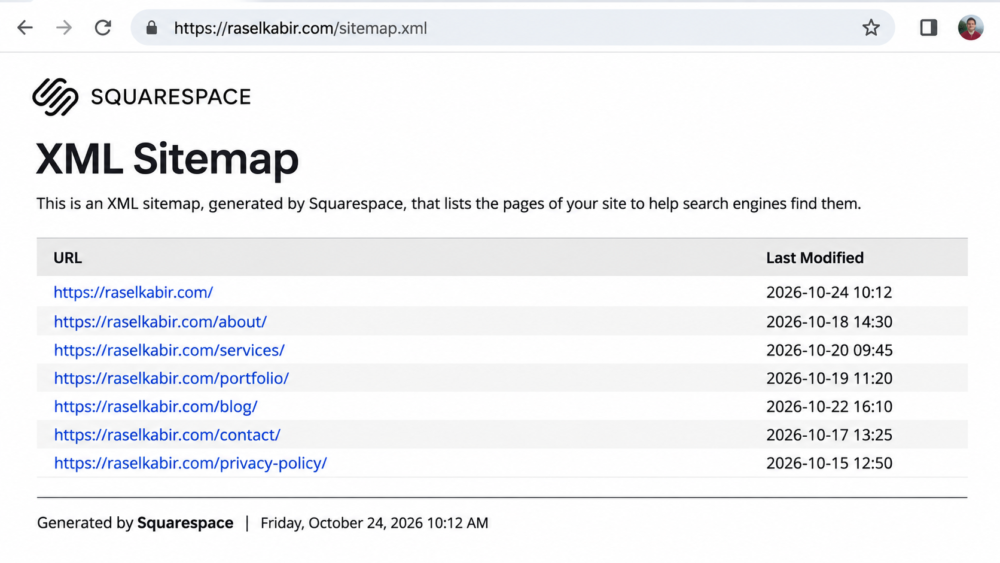
- An auto-generated sitemap at yourdomain.com/sitemap.xml
- Clean URLs and editable SEO fields on every page
What it won’t do is write your titles, choose your keywords, or publish helpful content for you. The platform gives you the tools. You still have to use them.
Squarespace isn’t the best choice for every site. If you’re running a massive publication or need heavy technical customization, a platform like WordPress gives you more control. For everyone else, your content and setup decide your rankings far more than your website builder does.
Pick Your Keywords Before You Touch Any Settings
This is the step people skip, and it’s why their SEO fields end up filled with vague phrases like “Home” or “Welcome to my site.”
For each important page, choose one primary keyword: the phrase a real person would type into Google to find what that page offers.
A few rules of thumb:
- Go specific. “Photographer” is hopeless. “Newborn photographer in Austin” has a chance.
- One page, one main keyword. If two pages target the same phrase, they compete against each other.
- Match intent. Someone searching “how to do X” wants a guide. Someone searching “X service near me” wants a service page.
Free tools like Google Search Console, Google’s autocomplete suggestions, and the “People also ask” box will get you started. Paid tools like Semrush or Ubersuggest help once you want volume and difficulty numbers.
Write your keyword list down. You’ll use it in every step below.
Squarespace SEO Settings: Where They Are and What to Enter
Squarespace menus shift a little between versions, so if something looks different on your screen, look for the same option nearby. On Squarespace 7.1, the main controls live in two places: a page’s own settings, and your site-wide settings.
Page-level SEO settings
Hover over a page in the Pages panel, click the gear icon, and open the SEO tab. Here’s what each field does.
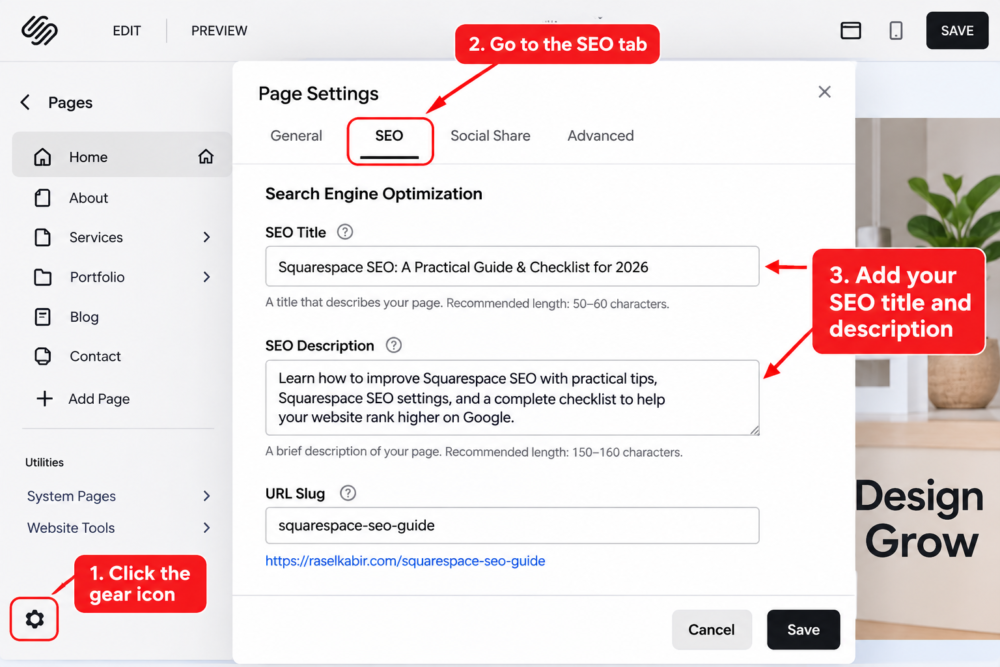
SEO title. This is the blue headline people see in Google results. Keep it around 50-60 characters, put your main keyword near the front, and add your brand name at the end. For example: Newborn Photographer in Austin | Maya Lane Photography. If you leave it blank, Squarespace uses the page title, which is often too short or too vague.
SEO description. This is the grey snippet under the headline. Google doesn’t treat it as a direct ranking factor, but it strongly affects whether people click. Write one or two natural sentences of about 150 characters that say what the page offers and why it’s worth opening. Treat it like a tiny ad for the page.
URL slug. Find this under the page’s General settings. Short and readable wins: /newborn-photography beats /services-page-final-2. Use hyphens between words, and skip filler like “the,” “and,” and “of.” Be careful with this one. Changing a slug on a live page breaks the old link unless you redirect it (more on that below).
Hide page from search results. This toggle keeps a page out of Google. It’s handy for thank-you pages, private client pages, or drafts. It’s also a classic accident. I’ve seen people leave it switched on for their most important page and wonder why it never ranks. Check it.
Site-wide SEO settings
Open Settings and look for the SEO section under your website options. This is where you set your site title and site description, which Google falls back on for your homepage and for pages with no custom entries. Fill them in with your business name plus what you do in plain words, not a slogan.
While you’re in Settings, also check your social sharing image. It doesn’t affect rankings, but it controls how your links look when shared on Facebook, LinkedIn, and similar platforms.
Use Headings the Right Way
Headings tell both readers and Google how your page is organized.
- One H1 per page. It should describe the page’s main topic, ideally with your primary keyword in it.
- H2s for main sections, H3s for subsections. Think of an outline, not a design choice.
- Don’t pick a heading size just because it looks good. If you want bigger text, adjust the styling. Don’t promote an H4 to an H1 for looks.
On blog posts, Squarespace usually treats the post title as the H1 automatically. On regular pages, double-check what’s actually tagged as a Heading 1, since it’s easy to use one visual style for several lines of text.
Optimize Your Images (Without Overthinking It)
Images are the most common reason a Squarespace site feels slow, and slow sites frustrate visitors and can hurt rankings.
- Resize before uploading. A full-width banner rarely needs to be wider than about 2,500 pixels.
- Compress. Free tools like TinyPNG or Squoosh can shrink a huge file dramatically with little visible loss. Aim for under 500 KB for large images, and far less for smaller ones.
- Rename the file. Swap
IMG_4821.jpgfor something likenewborn-photographer-austin.jpgbefore you upload. - Write real alt text. Describe what’s in the image the way you’d explain it to someone who can’t see it: “Newborn baby sleeping in a knitted cream blanket.” It helps screen-reader users first, and search engines second. Never stuff keywords here.
Check Your Site Speed
You don’t need a perfect score. You need a site that doesn’t make people wait. Run your homepage through Google’s PageSpeed Insights and read the suggestions in order.
On Squarespace, the usual fixes are the same few things: smaller images, fewer heavy video backgrounds, fewer animations, and fewer third-party scripts. Cutting one big autoplay video often improves speed more than any technical trick.
Write Content People Actually Want to Read
Settings help Google understand your site. Content is what earns you a place in the results.
A few principles that hold up:
- Answer the search fully. Look at what’s already ranking for your keyword, then cover the topic more clearly, more honestly, or with better examples.
- Write like a person. Short paragraphs, plain words, and a real point of view. Google increasingly rewards content that feels like it came from someone who knows the subject.
- Use your keyword naturally. Put it in the title, early in the page, and in a heading or two. Beyond that, write for the reader. If a sentence sounds awkward with the keyword in it, rewrite the sentence.
- Link between your own pages. A blog post about SEO basics should link to your service page where it’s relevant. This helps visitors move around and helps Google see how your pages relate.
- Be consistent. Two strong, helpful posts a month will do more for you than ten rushed ones in a burst.
Length isn’t a goal in itself. A post should be as long as it takes to answer the question well and no longer.
Connect Google Search Console
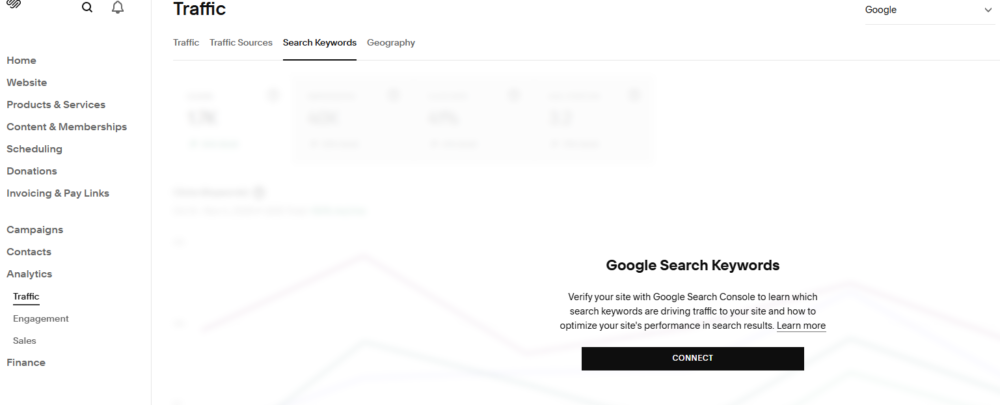
This is the step that tells Google your site exists, and it’s free.
- Open Squarespace’s Analytics panel and look for the option to connect Google Search Console (or verify your domain through Search Console directly).
- Follow the prompts and sign in with the Google account you want to use.
- Submit your sitemap, which is simply
yourdomain.com/sitemap.xml. - Give it a few days. Data takes time to appear.
Once it’s running, Search Console shows you which searches bring people to your site, which pages get impressions, and whether Google has trouble indexing anything. Make a habit of checking it monthly. You’ll often find that a page is ranking for something you never planned, and that’s a content idea.
Set Up Redirects When URLs Change
If you rename a page’s slug or delete a page, anyone clicking the old link lands on an error page, and any ranking that page earned goes with it.
Fix it with a URL Mapping. In Settings, look under Developer Tools (on some older menus it’s under Advanced) and open URL Mappings. Then add a line like:
/old-page -> /new-page 301
Use a 301 for permanent moves. Some guides suggest 302, which signals a temporary change, so choose 301 when the move is permanent.
Common Squarespace SEO Mistakes
- Leaving SEO titles and descriptions blank and letting Squarespace guess
- Targeting the same keyword on several pages
- Hiding a page from search by accident
- Uploading uncompressed images straight from a camera or stock site
- Changing URLs without redirects
- Writing vague blog titles like “Some Thoughts on Growth” instead of what people would actually search
- Expecting results in a week. SEO usually takes a few months to show real movement, especially for newer sites
Your 30-Minute Squarespace SEO Checklist
Here is a practical checklist you can use when launching a new Squarespace website or reviewing an existing one.
01. Website information
- Add a clear website title.
- Write a relevant SEO site description.
- Confirm your domain uses HTTPS.
- Choose readable page URL slugs.
- Set up Google Search Console.
02. On-page SEO
- Research a primary keyword for each important page.
- Write unique SEO titles.
- Add relevant meta descriptions.
- Use a clear H1 and logical heading structure.
- Include useful, original website content.
- Add relevant internal links.
03. Image optimization
- Resize oversized images.
- Compress large image files.
- Use descriptive image filenames.
- Add accurate image descriptions and alt text.
- Avoid unnecessary decorative images that slow down pages.
04. Technical SEO
- Submit your Squarespace sitemap.
- Check important pages for indexing issues.
- Review canonical URLs.
- Test mobile usability.
- Check website performance.
- Fix broken internal links.
05. Ongoing SEO
- Publish useful content consistently.
- Review Google Search Console performance.
- Monitor search queries and landing pages.
- Improve pages that receive impressions but few clicks.
- Update outdated information.
- Build relevant relationships and earn genuine backlinks.
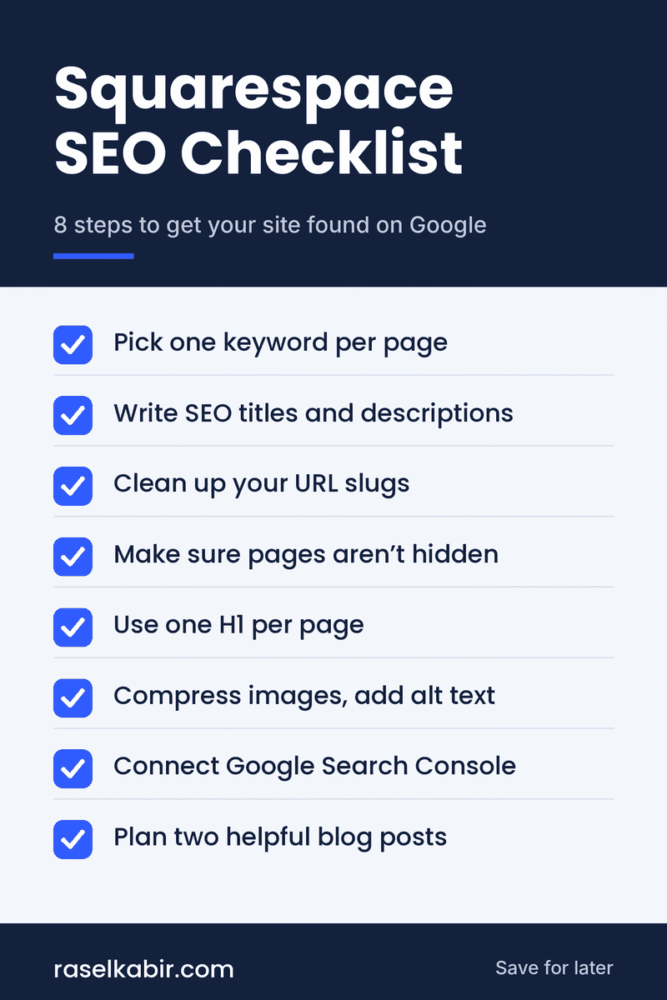
You don’t need to complete everything in one afternoon. Start with the most important pages and work through the list gradually.
Make Your Squarespace Website Easier to Find
Improving Squarespace SEO isn’t about finding one secret setting that suddenly puts your website at the top of Google.
It’s about making your website easier to understand, more useful to visitors, and technically accessible to search engines.
Start with keyword research, configure your Squarespace SEO settings, improve your page content, optimize images, and connect Google Search Console. Then continue reviewing your performance and making improvements based on real data.
Most importantly, remember that SEO takes time. Even a well-optimized website may need continued content improvements, relevant backlinks, and a stronger reputation before it earns competitive rankings.
If you’ve already tried these steps but your Squarespace website still isn’t getting the visibility you expected, it may be worth having an experienced designer review its content, structure, and technical setup.
I’m Rasel Kabir, a freelance web designer and developer helping businesses create professional websites with Squarespace, WordPress, and Wix. If you need help improving your Squarespace website or planning a redesign, get in touch.
Squarespace SEO FAQs
Most sites see early movement within a few weeks and meaningful traffic within three to six months, depending on competition and how often you publish.
No. Squarespace doesn’t use plugins the way WordPress does, and the built-in settings cover the essentials. Third-party add-ons can help with reporting, but they aren’t required.
Both can rank well. WordPress offers more technical flexibility. Squarespace is simpler and needs less maintenance. For most small sites, the quality of your content matters more than the platform.
At minimum: a primary keyword for each page, SEO titles and descriptions, clean URL slugs, one H1 per page, compressed images with alt text, Google Search Console connected, and redirects for any changed URLs. The checklist above covers all of these.
Final Thoughts
Squarespace SEO isn’t about tricks. It’s about filling in the basics properly: the right keyword on each page, clear titles and descriptions, fast-loading images, helpful content, and Google Search Console connected so you can see what’s working.
Do those things consistently and you’ll be ahead of most sites that never bother. Start with the Squarespace SEO checklist above, then build from there one post at a time.
Want a second pair of eyes on your site? Get in touch with Rasel and I’ll take a look