How to Move Your Website from Wix to Squarespace (Without Losing SEO)
Switching website platforms is exciting, and a little scary. You want a site that looks better and is easier to manage, but you’ve worked hard to get found on Google. The good news is that a careful Wix to Squarespace migration doesn’t have to cost you traffic. The bad news is that if you rebuild your site and just hit publish, you can lose rankings quickly.
I’m Rasel Kabir, a freelance web designer with 11+ years of experience and 200+ projects. This guide covers the steps I follow, in plain language. If you’d rather have an expert handle it, take a look at my website migration service.
The Short Version
- Audit your Wix site.
- Build the new site in Squarespace.
- Match your URLs where possible.
- Set up 301 redirects.
- Copy your SEO settings.
- Test everything.
- Connect your domain.
- Monitor Google Search Console.
Can You Import a Wix Site Into Squarespace Automatically?
Not really. There’s no one-click importer that moves your Wix pages into Squarespace. Most of your text, images, and layouts need to be rebuilt by hand. Blog posts and products can sometimes be moved with exports and workarounds, but you’ll still need to check them carefully.
That’s actually a good thing for SEO. It’s a chance to clean up old content and improve your site structure. Just plan enough time, because a small site takes several days to move properly.
Step 1: Audit Your Current Wix Site
Before you build anything, write down what you have. This is the step people skip, and it’s the one that protects your rankings.
Make a simple spreadsheet with:
- Every page and blog post URL
- The page title and meta description for each
- Which pages get the most traffic
- Which pages have backlinks from other websites
To find your URLs, open yourwebsite.com/sitemap.xml. For traffic, use Google Search Console, which is free.

Don’t delete or move your best-performing pages without a plan. These are the pages that matter most.
Step 2: Build Your New Site in Squarespace
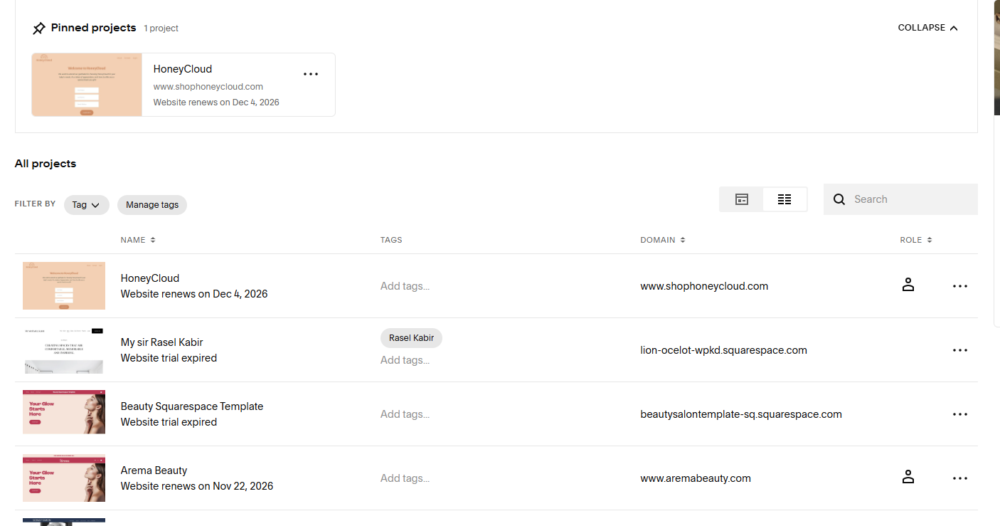
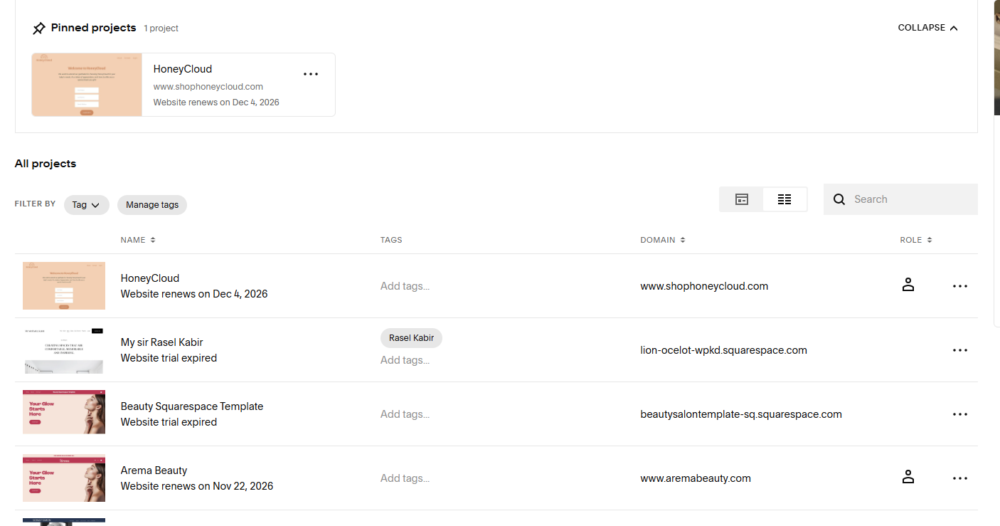
Start a Squarespace trial and build your new site there. Your Wix site stays live the whole time, so visitors never see an unfinished version.
Choose a clean, simple design that fits your brand. Don’t worry about perfection yet. The goal is to recreate your pages, content, and navigation.
Step 3: Move Your Content Carefully
Rebuild each page in Squarespace using your audit as a checklist.
- Text: Copy it over, but keep your headings (H1, H2, H3) in the same logical order.
- Images: Download your originals from Wix, compress them, and re-upload them. Smaller images mean faster pages.
- Blog posts: Move them with their original titles, dates, and text. Dates matter, because old posts shouldn’t suddenly look brand new.
- Products: If you sell online, export your product data from Wix and re-add or import it into Squarespace, then check prices, variants, and images.
This is also a good time to rewrite weak pages, delete outdated ones, and merge thin content. Just don’t remove a page that gets traffic without redirecting it (more on this in Step 5).
Step 4: Keep Your URLs the Same Where Possible
Your page URLs are part of how Google recognizes your pages. The more of them you keep identical, the fewer redirects you need and the smoother the move.
For example, if your Wix page is yourwebsite.com/about, give your Squarespace page the same URL slug. You can edit it in each page’s settings.
Blog URLs usually differ. Wix typically puts posts under /post/, while Squarespace uses the blog page’s URL, such as /blog/. When URLs can’t match, you’ll use redirects.
Step 5: Set Up 301 Redirects
A 301 redirect tells Google and visitors that a page has moved permanently. It sends people to the new page and passes most of the old page’s ranking power along with them. Without redirects, old links lead to “page not found” errors, and your rankings can drop.
In Squarespace, go to Developer Tools → URL Mappings and add one line for each old URL, in this format:
/old-page -> /new-page 301
For example:
/post/my-first-article -> /blog/my-first-article 301
Once the new site is live, test a few old URLs in your browser to make sure each one lands on the right new page. Redirect each old page to the most relevant new page, not everything to the homepage.
Step 6: Copy Your SEO Settings
When you rebuild a page, it’s easy to forget the SEO details behind it. For every page, make sure you’ve carried over:
- SEO title and meta description: These are what people see in Google results.
- Image alt text: It helps with accessibility and image search.
- One H1 per page: Use the page’s main topic.
- Clean internal links: Update any links that still point to old Wix URLs.
In Squarespace, you’ll find the SEO title and description in each page’s settings. For a full walkthrough, see my Squarespace SEO checklist.
Step 7: Test Everything Before You Launch
Check the new site carefully before it goes live:
- Do all links, buttons, and forms work?
- Does the site look right on phones? Most visitors browse on mobile, so see my guide to Squarespace mobile optimization.
- Are your tracking tools, like Google Analytics, connected?
- Do your redirects send people to the right pages?
- Is any placeholder text still on the page?
Step 8: Connect Your Domain
Your domain is your website’s address, and you have two options. You can keep it registered with Wix and point it to Squarespace, or you can transfer it to Squarespace entirely. Pointing is faster and simpler. A transfer can take several days, and domains that were recently registered or changed are often locked for around 60 days.
In both cases, don’t cancel your Wix plan until the domain is fully working on Squarespace. Cancel too early and your site can go offline.
Step 9: Check Google After Launch
Once the site is live:
- Submit your new sitemap (
yourwebsite.com/sitemap.xml) in Google Search Console. - Check the “Pages” report for new errors, especially 404s.
- Watch your traffic for the next few weeks.
A small dip right after a migration is normal, because Google needs time to re-crawl your site. If you did the work above, rankings usually recover. If they don’t, look for missing redirects first.
📸 Screenshot 8: The Search Console sitemap submission screen.
Alt text: Submitting a Squarespace sitemap in Google Search Console
Common Wix to Squarespace Migration Mistakes
- Skipping the audit and losing track of important pages
- Forgetting redirects, or redirecting every old page to the homepage
- Changing page titles and headings without a reason
- Canceling Wix before the domain is connected
- Not testing on mobile
- Never checking Search Console afterward
Wix to Squarespace Migration FAQs
Not if you prepare. Keep your URLs the same where possible, use 301 redirects for those that change, and carry over your titles and descriptions. Expect small ups and downs for a few weeks while Google re-crawls your site.
A simple five-page site can take a few days. A larger site with a blog or online store can take a couple of weeks, depending on how much content you have and how much you want to improve.
Yes, but not with a perfect one-click import. You can rebuild posts by hand or use an export workaround, then check formatting, images, dates, and URLs. Add redirects for any post URLs that change.
Only until your new site is live and your domain works on Squarespace. Once everything is confirmed, you can cancel. If your domain is registered with Wix, make sure you’ve transferred or pointed it first.
If your site is small and you have time, the steps above make it doable. If you have lots of pages, a blog, a store, or rankings you can’t risk, a professional can save you time and protect your traffic.
A successful Wix to Squarespace migration comes down to preparation. Audit your site, keep your URLs consistent, set up redirects, and check Google after you launch. Done right, you get a better website without losing the visibility you’ve built.
Want me to handle your move? I’ve built 200+ websites on Squarespace, WordPress, and Wix, and I’ll make sure your content, design, and SEO make it across safely. Book a free strategy call or see my Squarespace web design services.